

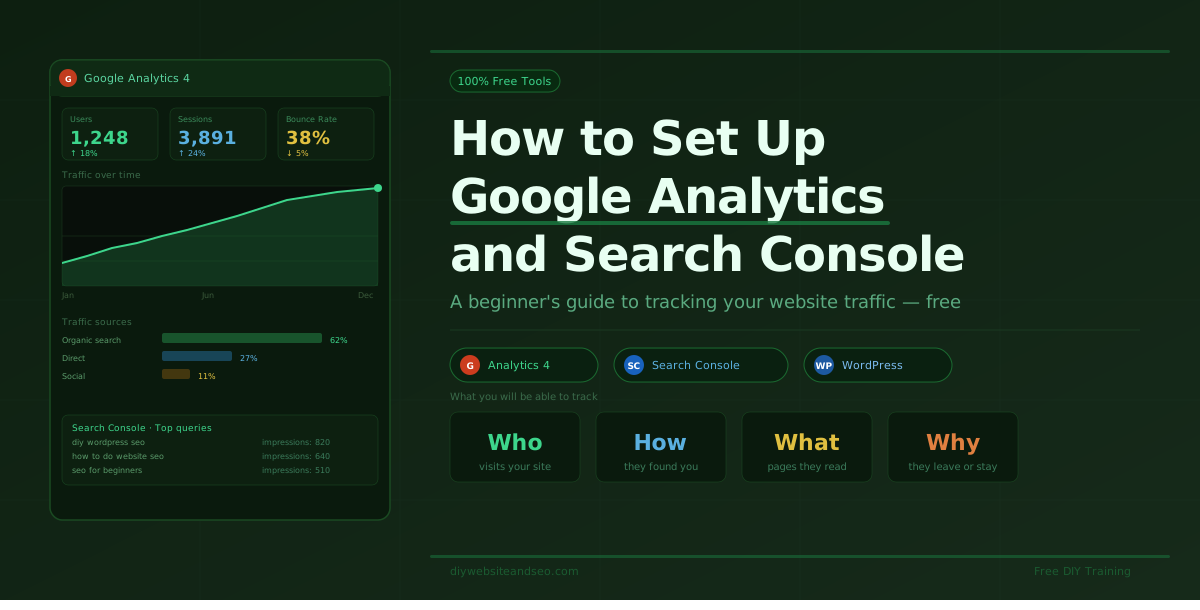
Why You Need Google Analytics and Google Search Console
Needing to learn how to set up Google Analytics yourself? Good thinking. If you have a website and you are not tracking what is happening on it, you are flying blind. Google gives you two completely free tools that tell you almost everything you need to know about your website’s performance.
Google Analytics tells you who is visiting your site, where they came from, what pages they looked at, and how long they stayed.
Google Search Console tells you how your website is doing in Google search results, what keywords people used to find you, how many times your pages showed up, and whether Google has any issues with your site.
Together, these two tools are the foundation of any smart website and SEO strategy. And the best part? They are 100% free. They are not perfectly accurate especially if not configured in detail, however they do give accurate enough to guide you.
There are WordPress plugins like Rank Math and platforms like MOZ that can connect directly too your analytics for easy viewing or further research.
What Is Google Analytics 4 (GA4)?
As of 2023, Google moved everyone to Google Analytics 4, also called GA4. It replaced the older version called Universal Analytics. If you are setting up Google Analytics for the first time, you will automatically get GA4.
GA4 tracks things a little differently than the older version. Instead of just counting page views, it tracks events, actions people take on your site like clicking a button, watching a video, or filling out a form. This gives you a much richer picture of how people are actually using your website.
This post describes basic platform setup. You can learn how to setup events with Google Tag Manager near the end this post.
How to Set Up Google Analytics on Your WordPress Website
Setting up Google Analytics does not require coding knowledge. Here is what to do:
Step 1 — Create a Google account if you do not already have one. Then go to analytics.google.com and click “Start measuring.”
Step 2 — Set up a property. A property is basically your website in Google’s system. Give it your website name and time zone.
Step 3 — Get your tracking code or Measurement ID. It looks something like G-XXXXXXXXXX. You will need this to connect Analytics to your site.
Step 4 — Add it to your WordPress website. The easiest way is through a plugin. If you use Rank Math or Yoast SEO, both have a spot built in where you can paste your Measurement ID. Alternatively, you can use the free Site Kit by Google plugin, it handles the connection for you automatically. There are also easy install areas with many theme types like Avada.
Step 5 — Verify it is working. Go to your website in one browser tab, then open Google Analytics in another. Click on “Realtime” in the left menu. If you can see yourself visiting the site, it is working. It will be obvious by notification.
How to Set Up Google Search Console
Google Search Console is a separate tool from Analytics, but they work great together.
Step 1 — Go to search.google.com/search-console and sign in with your Google account.
Step 2 — Add your website as a property. Choose “URL prefix” and enter your website address including the https://.
Step 3 — Verify ownership. Google needs to confirm the site belongs to you. The easiest way to do this with WordPress is the HTML tag method — Google gives you a small line of code, and you paste it into your SEO plugin’s settings under “verification.” Site Kit by Google will do this automatically if you use it.
Step 4 — Submit your sitemap. In the left menu, click “Sitemaps.” Your WordPress SEO plugin (Yoast, Rank Math, or All in One SEO) automatically creates a sitemap for you. It is usually at yourwebsite.com/sitemap.xml, then paste that URL into Search Console and hit submit. This helps Google find and index all your pages faster.
Connect Google Analytics and Search Console Together
You can link these two tools so your Analytics account shows search data alongside your traffic data. To do this:
- In Google Analytics, go to Admin (the gear icon at the bottom left)
- Under “Property,” click Search Console Links
- Follow the steps to connect your Search Console account
Once connected, you will see search performance data directly inside Google Analytics — a huge time saver.
What to Look for Once Everything Is Set Up
You do not need to be a data expert to get value from these tools. Here are the most useful things to check regularly:
In Google Analytics: – How many people visited your site this week vs last week – Which pages get the most traffic – Where your visitors came from (Google search, social media, direct) – How long people stay on your website.
In Google Search Console: – What search terms people used to find your site – How many times your pages appeared in search results (impressions) – Your click-through rate – how often people clicked when they saw your link – Any errors Google found when crawling your site
Checking these things even once a week will help you make smarter decisions about your content and SEO strategy.
Watch the Free Setup Videos
Setting this up is much easier when you can see it done step by step in videos. The DIY Google Analytics and Console Setup Videos shown at diywebsiteandseo.com walk you through the entire process — from creating your accounts to connecting everything to your WordPress website.
Here you can go deeper and learn how to set up GA4 Google Analytics events in Tag Manager.
No tech background needed. Just follow along and you will have tracking tools up and running in no time.
If your newer or haven’t tried MOZ SEO software yet, it’s entirely beginner friendly and even has a helpful chrome extension.